
Launch Modes1️⃣ standard (Default)Rule: Always creates a new instanceBack Stack A → A → AUse CaseProduct detailsFormsList → Detail screensInterview Line: Default mode, no reuse,...
Launch Modes
1️⃣ standard (Default)
Rule: Always creates a new instance
Back Stack
A → A → A
Use Case
- Product details
- Forms
- List → Detail screens
Interview Line: Default mode, no reuse, no stack clearing
2️⃣ singleTop
Rule
- Reused only if already on top
- Calls onNewIntent()
Back Stack
A → B → (launch B) → A → B
Use Case
- Notifications
- Search results
- Chat screen
Interview Line: Reuse only when activity is at top
3️⃣ singleTask
Rule
- Only one instance per task
- Clears all activities above it
Back Stack
A → B → C
Launch A → A
Use Case
- Home / Dashboard
- Main entry screen
Interview Line: Clears stack above existing instance
4️⃣ singleInstance
Rule
- Runs in its own task
- No other activities allowed
Back Stack
App → CallScreen
Back → Previous app
Use Case
- Incoming call
- Alarm
- System-level flows
Interview Line: One activity = one task (global singleton)
5️⃣ singleInstancePerTask (Android 12+)
Rule
- One instance per task
- Can exist in multiple tasks
- Modern replacement of singleInstance
Back Stack
Task 1 → SpecialActivity
Task 2 → SpecialActivity
Use Case
- Deep links
- OAuth / Payment flows
- Multi-window apps
Interview Line: Singleton per task, not global
📊 Quick Comparison Table
Launch Mode | New Instance | Reuse Condition | Clears Stack | Own Task |
standard | ✅ Always | ❌ | ❌ | ❌ |
singleTop | ⚠️ Sometimes | If on top | ❌ | ❌ |
singleTask | ❌ | Existing in task | ✅ | ❌ |
singleInstance | ❌ | Global single | ✅ | ✅ |
singleInstancePerTask | ❌ | Per task single | ✅ | ⚠️ (per task) |
🧠 Memory Trick (Gold ⭐)
- standard → New every time
- singleTop → Top reuse
- singleTask → Clear above
- singleInstance → One screen, one task
- singleInstancePerTask → One per task
What is popUpToInclusive?
popUpToInclusive is used with Jetpack Navigation to clear screens from the back stack, including the destination you pop up to.
👉 In short: Remove everything up to AND including a specific screen
🧠 Without vs With inclusive
❌ inclusive = false (default)
popUpTo(R.id.loginFragment) {
inclusive = false
}
Result
login → otp → home
Back → login
(login remains)
✅ popUpToInclusive = true
popUpTo(R.id.loginFragment) {
inclusive = true
}
Result
login → otp → home
Back → exits app
(login removed)
🆚 popUpTo vs popUpToInclusive
Feature | popUpTo | popUpToInclusive |
Clears above destination | ✅ | ✅ |
Clears the destination itself | ❌ | ✅ |
Keeps back navigation | ✅ | ❌ |
Concept | Equivalent |
popUpToInclusive | FLAG_ACTIVITY_CLEAR_TASK |
popUpTo | FLAG_ACTIVITY_CLEAR_TOP |
📌 What is Deeplinking?
Deeplinking allows one app (App A) to open a specific screen inside another app (App B) using a URL / Intent, optionally passing data.
In short: App-to-App navigation using intents & URLs
🧠 Why Deeplinking is App-to-App Communication
- App A does not directly call App B’s code
- App B exposes an entry point (Intent Filter)
- Communication happens via:
- Intent
- URI parameters
🔄 Types of Deeplinks (Interview MUST)
1️⃣ Explicit Deep Link (Intent-based)
Used when App B package is known
App A
val intent = Intent(Intent.ACTION_VIEW).apply {
data = Uri.parse("myapp://product/123")
setPackage("com.example.appB")
}
startActivity(intent)
✔ Works only if App B is installed
2️⃣ Implicit Deep Link (URL-based)
Uses Intent Filter
App B (Manifest)
<intent-filter>
<action android:name="android.intent.action.VIEW" />
<category android:name="android.intent.category.DEFAULT" />
<category android:name="android.intent.category.BROWSABLE" />
<data
android:scheme="myapp"
android:host="product" />
</intent-filter>
App A
Intent(Intent.ACTION_VIEW, Uri.parse("myapp://product/123"))
✔ Opens App B
✔ Passes 123 as data
3️⃣ App Links (Verified Deep Links) ⭐
- Uses HTTPS
- Domain ownership verified
- Opens app directly without chooser
https://myapp.com/product/123
✔ Most secure
✔ Preferred by Google
⚠️ Security Considerations (INTERVIEW GOLD)
✅ Use App Links (HTTPS)
✅ Validate incoming parameters
❌ Avoid sensitive data in URL
✅ Check getCallingPackage()
✅ Use signature verification if needed
🧠 One-Line Interview Answer
Deeplinking enables one app to open a specific screen of another app using intents and URLs, allowing controlled app-to-app communication.
❌ Common Interview Mistakes
- Confusing deeplink with navigation component
- Forgetting BROWSABLE category
- Assuming deep links work without app installed
- Not validating incoming data
🔥 Launch Mode + Deeplink (Tricky Question)
👉 Use singleTask / singleInstancePerTask
to avoid multiple instances when deep links are triggered repeatedly.
📦 AAB vs APK — Short, Clear & Interview-Ready
🔹 What is APK?
APK (Android Package) is a single installable file that contains all resources (all ABIs, densities, languages).
📌 Installed directly on device
📌 Used before Play Store installs AAB
🔹 What is AAB?
AAB (Android App Bundle) is a publishing format. Google Play generates optimized APKs from it for each device.
📌 Not installed directly
📌 Only for Play Store upload
🆚 AAB vs APK (Comparison Table)
Feature | APK | AAB |
Installable directly | ✅ Yes | ❌ No |
Play Store upload | ⚠️ Deprecated | ✅ Mandatory |
App size | ❌ Larger | ✅ Smaller |
Device optimization | ❌ No | ✅ Yes |
Dynamic features | ❌ Limited | ✅ Supported |
Split APKs | ❌ No | ✅ Yes |
Required by Google Play | ❌ No | ✅ Yes (since Aug 2021) |
🧠 How AAB Works (Simple)
Developer → Upload AAB → Play Store
Play Store → Generates device-specific APK
User → Downloads optimized APK
✔ Only required resources
✔ Faster downloads
✔ Less storage usage
📱 Real-Life Example
APK
- Downloads all languages
- All screen densities
- All CPU architectures
AAB
- User device = ARM + xxhdpi + English
➡ Downloads only those resources
🧪 Interview One-Liners (GOLD)
- APK → Installable package
- AAB → Publishing format
- Play Store installs APKs, not AABs
- AAB reduces app size automatically
⚠️ Common Interview Traps
❌ “AAB is installed on device” → WRONG
❌ “APK is deprecated completely” → WRONG
✅ APK still used for debug / sideloading
⚙️ WorkManager vs JobScheduler vs Service (Interview Cheat Sheet)
🔹 1️⃣ WorkManager (Recommended by Google)
What it is
High-level API for deferrable, guaranteed background work
Best for
- Sync
- Upload logs
- Retryable background tasks
- Tasks that must complete eventually
Key Features
✅ Survives app kill & reboot
✅ Handles Doze & battery optimizations
✅ Auto retries + backoff
✅ Internally uses JobScheduler / AlarmManager
Example
OneTimeWorkRequestBuilder<SyncWorker>().build()
Interview One-liner
WorkManager is for guaranteed background work, even if app or device restarts.
🔹 2️⃣ JobScheduler (System-Level API)
What it is
Low-level system-managed background job API (API 21+)
Best for
- System-optimized background tasks
- Network / charging based execution
- Periodic jobs
Key Features
✅ Runs even if app is killed
⚠️ Execution time not guaranteed
❌ No direct chaining
❌ Manual retry handling
Example
jobInfo.setRequiredNetworkType(JobInfo.NETWORK_TYPE_ANY)
Interview One-liner
JobScheduler lets the system decide the best time to run background jobs.
🔹 3️⃣ Service
What it is
Component for immediate tasks
Types
- Service (background – restricted)
- ForegroundService (allowed)
- BoundService
Best for
- Music playback
- Location tracking
- Ongoing downloads
- User-visible operations
Key Features
⚠️ Killed easily if background
✅ Foreground service survives
❌ No retry
❌ Not battery optimized
Example
startForegroundService(intent)
Interview One-liner
Services are for immediate, user-visible work.
🆚 Comparison Table (VERY IMPORTANT)
Feature | WorkManager | JobScheduler | Service |
Immediate execution | ❌ | ❌ | ✅ |
Guaranteed execution | ✅ | ⚠️ | ❌ |
Survives app kill | ✅ | ✅ | ⚠️ |
Survives reboot | ✅ | ✅ | ❌ |
Retry support | ✅ | ⚠️ | ❌ |
Chaining tasks | ✅ | ❌ | ❌ |
Periodic work | ✅ | ✅ | ❌ |
Battery optimized | ✅ | ✅ | ❌ |
User-visible | ❌ | ❌ | ✅ |
Android 8+ safe | ✅ | ✅ | ❌ |
🎯 Scenario-Based Decision Guide
Scenario | Correct Choice |
Upload logs after app closed | WorkManager |
Daily sync | WorkManager |
Network-based background job | JobScheduler |
Music playback | Foreground Service |
Location tracking | Foreground Service |
Retry failed API call | WorkManager |
Task must run immediately | Foreground Service |
Guaranteed background execution | WorkManager |
⚠️ Common Interview Traps
❌ Using Service for background sync
❌ Expecting JobScheduler to run immediately
❌ Forgetting ForegroundService notification
❌ Using JobScheduler instead of WorkManager
🧠 Golden Interview Answer (Senior Level)
Use WorkManager for guaranteed, deferrable background work;
JobScheduler for system-optimized jobs with constraints;
Service for immediate, user-visible long-running tasks.
🔥 Bonus Question
Q: Does WorkManager replace JobScheduler?
A:
👉 Yes, for most apps.
WorkManager internally uses JobScheduler and provides retries, chaining, and backward compatibility.
🔐 Security Protocols
1️⃣ Network Security
✅ HTTPS / TLS
- Always use HTTPS (TLS 1.2+)
- Prevents Man-in-the-Middle (MITM) attacks
Interview line:
Never send data over HTTP in production.
✅ Certificate Pinning
- App trusts only specific server certificates
- Prevents fake certificates
App → Trusted Cert → Server
Used in: Banking, Payments, Enterprise apps
2️⃣ Authentication & Authorization
✅ OAuth 2.0 / OpenID Connect
- Token-based authentication
- Avoids sharing user credentials
Flow:
Login → Access Token → API calls
✅ JWT (JSON Web Token)
- Stateless authentication
- Short-lived tokens preferred
Best Practice:
- Refresh tokens securely
- Rotate tokens frequently
3️⃣ Data Storage Security
✅ Encryption at Rest
- Encrypt sensitive data before storing
- Use AES-256
Android:
- EncryptedSharedPreferences
- SQLCipher / Room + encryption
✅ Android Keystore
- Store cryptographic keys securely
- Hardware-backed (TEE)
Interview line:
Never hardcode secrets in code.
4️⃣ API Security
✅ Secure Headers
- Use headers like:
- Authorization
- Content-Type
- Avoid passing secrets in URL
✅ Rate Limiting
- Prevent brute-force & abuse attacks
5️⃣ Application-Level Security
✅ Code Obfuscation
- Use ProGuard / R8
- Makes reverse engineering harder
✅ Root / Emulator Detection
- Detect compromised environments
- Restrict sensitive operations
6️⃣ Deep Link & Intent Security
✅ Validate Incoming Intents
- Never trust intent extras
- Check source app when needed
✅ Use App Links (HTTPS)
- Verified ownership
- Prevents link hijacking
7️⃣ Secure Permissions
✅ Least Privilege Principle
- Request only required permissions
- Avoid dangerous permissions unless necessary
8️⃣ Logging & Debug Security
❌ Avoid Sensitive Logs
- No passwords, tokens, PII in logs
❌ Disable Debug in Release
android:debuggable="false”
9️⃣ Backend Security (Brief)
- Input validation
- SQL injection protection
- Secure API gateways
- Regular security audits
🧠 One-Line Interview Answer
Application security involves protecting data in transit, at rest, and during execution using encryption, secure authentication, and platform-level protections.
⚠️ Common Interview Mistakes
❌ Hardcoding API keys
❌ Sending tokens in URLs
❌ Ignoring certificate pinning
❌ Logging sensitive data
⭐ Final Golden Rule
Security is layered — even if one layer fails, others protect the app.
🧠 Caching APIs
📌 What is API Caching?
API caching means storing API responses temporarily so repeated requests can be served faster, with less network usage.
Goal: Performance + Offline support + Reduced server load
1️⃣ Types of API Caching
🔹 Client-Side Caching (App)
- Cache stored in:
- Memory
- Disk (DB / File / HTTP cache)
Example:
User opens product list → second time loads from cache
🔹 Server-Side Caching
- Server caches responses
- Controlled via HTTP headers
2️⃣ HTTP Cache (MOST IMPORTANT)
✅ Cache-Control Header
Cache-Control: max-age=600
- Cache response for 10 minutes
❌ No Cache
Cache-Control: no-store
- Sensitive data (banking, OTP)
🔁 Revalidation
ETag / If-None-Match
- Server returns 304 Not Modified
3️⃣ Android API Caching (Practical)
🔹 OkHttp HTTP Cache
val cache = Cache(File(context.cacheDir, "http_cache"), 10L * 1024 * 1024)
Works when:
- Server sends cache headers
- Offline-first strategy applied
🔹 Manual Caching (DB)
- Save API response to:
- Room DB
- DataStore
Use when:
- Complex data
- Offline-first apps
4️⃣ Offline Caching Strategy (INTERVIEW GOLD)
Network Bound Resource Pattern
DB → UI
Network → DB → UI
✔ UI loads instantly
✔ Syncs when network available
5️⃣ Cache Invalidation (VERY IMPORTANT)
When to clear cache?
- Logout
- User switch
- Data update
- App version upgrade
Hardest problem in caching = invalidation
6️⃣ When NOT to Cache
❌ Login responses
❌ OTP / Payment APIs
❌ Highly dynamic data (live tracking)
7️⃣ Caching vs Persistence
Caching | Persistence |
Temporary | Long-term |
Improves speed | Data storage |
Can expire | Usually permanent |
🧠 Interview One-Liners
- Caching reduces latency and network calls
- HTTP headers control caching
- ETag avoids full payload download
- Offline-first apps rely on DB caching
⚠️ Common Interview Mistakes
❌ Caching sensitive data
❌ Ignoring cache invalidation
❌ Expecting caching without headers
❌ Using memory cache only
⭐ Final Summary Line
API caching improves performance and reliability by reusing previously fetched responses while respecting freshness and security.
🔐 Encrypting & Decrypting DB / Files – Cheat Sheet
📌 Why Encrypt DB / Files?
- Protect PII, tokens, business data
- Prevent data theft on rooted / stolen devices
- Meet security & compliance requirements
Goal: Data security at rest
1️⃣ What Should Be Encrypted?
✅ User credentials
✅ Tokens / session data
✅ Financial & health data
❌ Public / static data
2️⃣ Encryption Standards (INTERVIEW MUST)
🔹 AES (Advanced Encryption Standard)
- AES-256 recommended
- Symmetric encryption (same key)
Interview line:
AES is used for data at rest encryption.
🔹 RSA / ECC
- Used for key exchange, not large data
- Slower than AES
3️⃣ Android Key Management (MOST IMPORTANT)
✅ Android Keystore
- Securely stores encryption keys
- Hardware-backed (TEE)
App → Keystore → AES Key → Encrypt DB/File
Rule:
❌ Never hardcode keys
4️⃣ Encrypting Databases
🔹 SQLCipher (Room / SQLite)
- Full database encryption
- Transparent read/write
Flow
Room → SQLCipher → Encrypted DB file
✔ Data unreadable outside app
✔ Protects backups
🔹 EncryptedSharedPreferences
- For small key-value data
- Uses Keystore internally
EncryptedSharedPreferences.create(...)
5️⃣ Encrypting Files
🔹 File Encryption Flow
Plain File → AES Encrypt → Encrypted File
Steps
- Generate AES key (Keystore)
- Encrypt file stream
- Save encrypted output
🔹 Jetpack Security Library ⭐
- Simplifies encryption
- Google-recommended
EncryptedFile.Builder(...)
6️⃣ Decryption Flow
Encrypted Data → Keystore Key → Decrypt → Use in Memory
⚠️ Decrypted data should never be stored again in plain form
7️⃣ Best Practices (INTERVIEW GOLD)
✅ Use Keystore-backed keys
✅ Encrypt before writing to disk
✅ Decrypt only when needed
✅ Clear sensitive data from memory
❌ Do not log decrypted data
8️⃣ Performance Considerations
- Encrypt large files in streams
- Avoid decrypting frequently
- Cache decrypted data in memory only
⚠️ Common Interview Mistakes
❌ Hardcoded keys
❌ Using Base64 instead of encryption
❌ Encrypting passwords instead of hashing
❌ Storing decrypted data
🧠 One-Line Interview Answer
Database and file encryption protect sensitive data at rest using AES keys securely stored in Android Keystore.
⭐ Real-World Examples
- Banking apps → SQLCipher + Keystore
- Enterprise apps → EncryptedFile
- Tokens → EncryptedSharedPreferences
💾 Storing Info in Android (SharedPreferences Deprecated)
📌 What Changed?
- PreferenceManager.getDefaultSharedPreferences() is deprecated
- SharedPreferences itself is NOT removed
- Google recommends Jetpack DataStore
Key point: PreferenceManager is deprecated, not SharedPreferences
1️⃣ Why PreferenceManager Was Deprecated
❌ Global static access
❌ Hard to test
❌ Synchronous (can block UI)
❌ Poor error handling
2️⃣ Recommended Modern Solutions
✅ DataStore (BEST PRACTICE ⭐)
🔹 Types
1. Preferences DataStore
- Key-value storage
- Replacement for SharedPreferences
2. Proto DataStore
- Strongly typed (using protobuf)
- Compile-time safety
🔹 Why DataStore?
✅ Async & non-blocking
✅ Corruption handling
✅ Lifecycle-safe
✅ Test-friendly
🔹 Example (Preferences DataStore)
val Context.dataStore by preferencesDataStore("settings")
context.dataStore.edit {
it[booleanPreferencesKey("is_logged_in")] = true
}
3️⃣ Secure Storage (Sensitive Data)
❌ Plain SharedPreferences → NOT secure
✅ Use:
- EncryptedSharedPreferences
- DataStore + manual encryption
- Android Keystore
4️⃣ When SharedPreferences Is Still OK
✔ Very small data
✔ Legacy apps
✔ Non-critical flags
But avoid PreferenceManager
5️⃣ Comparison Table (Interview Important)
Feature | SharedPreferences | PreferenceManager | DataStore |
Deprecated | ❌ | ✅ | ❌ |
Async | ❌ | ❌ | ✅ |
Thread-safe | ⚠️ | ⚠️ | ✅ |
Lifecycle safe | ❌ | ❌ | ✅ |
Recommended | ⚠️ | ❌ | ✅ |
6️⃣ Migration Strategy
SharedPreferences → DataStore (one-time migration)
Jetpack provides auto-migration support.
⚠️ Common Interview Traps
❌ “SharedPreferences is deprecated” → WRONG
❌ Using PreferenceManager in new apps
❌ Storing tokens in plain prefs
❌ Blocking UI thread
🧠 One-Line Interview Answer
PreferenceManager is deprecated; modern Android apps should use DataStore for async, lifecycle-safe key-value storage.
⭐ Final Recommendation
- New apps → DataStore
- Sensitive data → Encrypted storage
- Legacy apps → Avoid PreferenceManager, plan migration
🧩 Dependency Injection (DI) & MVVM – 1-Pager
1️⃣ What is Dependency Injection?
Definition
Dependency Injection means providing dependencies from outside instead of creating them inside a class.
❌ Tight coupling
class LoginViewModel {
val repo = LoginRepository() // bad
}
✅ Loose coupling
class LoginViewModel(
private val repo: LoginRepository
)
Benefits
- Easier testing
- Better separation of concerns
- Scalable architecture
Interview line:
DI improves testability and reduces coupling.
2️⃣ DI in Android (Hilt – Preferred)
Why Hilt?
- Official Jetpack DI
- Less boilerplate
- Lifecycle aware
Common Annotations
- @HiltAndroidApp
@AndroidEntryPoint - @HiltViewModel
- @Inject
- @Module, @Provides
3️⃣ MVVM Architecture
Components
Layer | Responsibility |
Model | Data & business logic |
View | UI (Activity / Fragment / Compose) |
ViewModel | State holder & logic |
MVVM Flow
View → ViewModel → Repository → Data Source
↑
LiveData / StateFlow
Key Rule
- View observes
- ViewModel does not know View
4️⃣ DI + MVVM Together (MOST IMPORTANT)
Why combine them?
- ViewModel depends on Repository
- Repository depends on API / DB
- DI provides these dependencies cleanly
Example Flow
Activity/Fragment
↓
ViewModel (Injected)
↓
Repository (Injected)
↓
API / DB
ViewModel with Hilt
@HiltViewModel
class LoginViewModel @Inject constructor(
private val repo: LoginRepository
) : ViewModel()
Repository Injection
class LoginRepository @Inject constructor(
private val api: LoginApi
)
5️⃣ Benefits of DI + MVVM
✅ Clear separation of concerns
✅ Easy unit testing (mock dependencies)
✅ Lifecycle-safe ViewModels
✅ Scalable for large apps
Hilt Annotations & Use Cases
Annotation | Where Used | Use Case |
@HiltAndroidApp | Application class | Triggers Hilt code generation |
@AndroidEntryPoint | Activity / Fragment / Service | Enables dependency injection |
@Inject | Constructor / Field | Requests dependency |
@Module | Class | Defines how to provide dependencies |
@InstallIn | Module | Specifies component scope |
@Provides | Module function | Provides dependency instance |
@Binds | Module function | Binds interface to implementation |
@Singleton | Dependency | Single instance across app |
@ActivityScoped | Dependency | Lives as long as Activity |
@FragmentScoped | Dependency | Lives as long as Fragment |
@ViewModelScoped | Dependency | Shared within ViewModel |
@ServiceScoped | Dependency | Lives as long as Service |
@Reusable | Dependency | Reused instance when possible |
@HiltViewModel | ViewModel class | Inject dependencies into ViewModel |
@EntryPoint | Interface | Access Hilt outside Hilt classes |
@Qualifier | Annotation class | Differentiate same-type dependencies |
@Named | Injection site | Simple qualifier by name |
6️⃣ Common Interview Traps
❌ Creating repository inside ViewModel
❌ Passing Context to ViewModel
❌ ViewModel calling UI APIs
❌ Not using DI for ViewModels
7️⃣ DI vs MVVM (Clarification)
DI | MVVM |
Design principle | Architecture pattern |
Manages dependencies | Manages app structure |
Improves testability | Improves UI separation |
🧠 One-Line Interview Answers
- DI:
Dependency Injection provides required objects externally to reduce coupling. - MVVM:
MVVM separates UI, state, and business logic using ViewModel as a mediator. - DI + MVVM:
DI supplies dependencies to ViewModels, making MVVM testable and scalable.
⭐ Final Takeaway
MVVM structures the app, DI wires it together.
Both are essential for modern Android development.
📌 What is Biometric Authentication?
- Uses biological traits to verify user identity
- Fingerprint, face, iris, or device credential (PIN/pattern)
- Replaces or complements passwords
Goal: Secure & convenient user authentication
1️⃣ Android Biometric APIs
- Package: androidx.biometric:biometric
- Unified API for Fingerprint + Face + Iris
- Supports strong & weak biometric types
🔹 Setup Example (Kotlin)
val biometricPrompt = BiometricPrompt(
this,
Executors.newSingleThreadExecutor(),
object : BiometricPrompt.AuthenticationCallback() {
override fun onAuthenticationSucceeded(result: BiometricPrompt.AuthenticationResult) {
// Auth successful
}
override fun onAuthenticationFailed() {
// Auth failed
}
}
)
val promptInfo = BiometricPrompt.PromptInfo.Builder()
.setTitle("Login")
.setSubtitle("Use fingerprint or face")
.setNegativeButtonText("Cancel")
.build()
biometricPrompt.authenticate(promptInfo)
2️⃣ Key Features
✅ Works with Fingerprint, Face, Iris
✅ Handles fallback (PIN/pattern)
✅ Supports crypto objects for encrypting/decrypting sensitive data
✅ System-managed → secure storage in TEE / Keystore
3️⃣ Biometric Strength Levels
Level | Description |
Strong | Fingerprint, Face with anti-spoofing |
Weak | Some device biometrics with minimal security |
Device Credential | PIN, pattern, password (fallback) |
4️⃣ Use Cases (Real-World)
- Banking / Payment apps → Authenticate transactions
- Password managers → Unlock vault
- App login → Biometric instead of password
- Securing sensitive files / databases
5️⃣ Security Best Practices
✅ Always use BiometricPrompt API
✅ Do NOT store raw biometrics
✅ Use Keystore-backed encryption for sensitive data
✅ Fallback to device credentials if biometrics fail
✅ Respect user privacy & consent
6️⃣ Common Interview Traps
❌ Using FingerprintManager (deprecated)
❌ Storing biometric data locally
❌ Ignoring fallback for non-supported devices
❌ Assuming 100% spoof-proof (always consider multi-factor)
7️⃣ One-Line Interview Answers
- Biometric Authentication:
Uses fingerprint, face, or device credentials for secure user authentication.
- Android Implementation:
Use BiometricPrompt API with fallback to PIN/pattern.
- Security Benefit:
Sensitive data can be unlocked securely without passwords.
SSL pinning (often written as SSL pinning, not “pining” 🙂) is a security technique used in Android apps to protect network communication from man-in-the-middle (MITM) attacks.
Let’s break it down in a simple, practical way.
What is SSL Pinning?
Normally, when your Android app connects to a server over HTTPS:
- The server sends its SSL certificate
- Android checks:
- Is this certificate signed by a trusted Certificate Authority (CA)?
- If yes → connection allowed
👉 Problem:
If a malicious actor installs a fake trusted CA on the device (or uses proxy tools like Charles, Burp, or MITM proxy), they can intercept traffic.
SSL Pinning adds an extra lock 🔒
With SSL Pinning, your app:
- Hardcodes the server’s certificate or public key
- During every HTTPS call, it verifies:
“Is this exact certificate (or public key) the one I trust?”
If it doesn’t match → connection fails, even if the certificate looks valid.
How SSL Pinning Works (Flow)
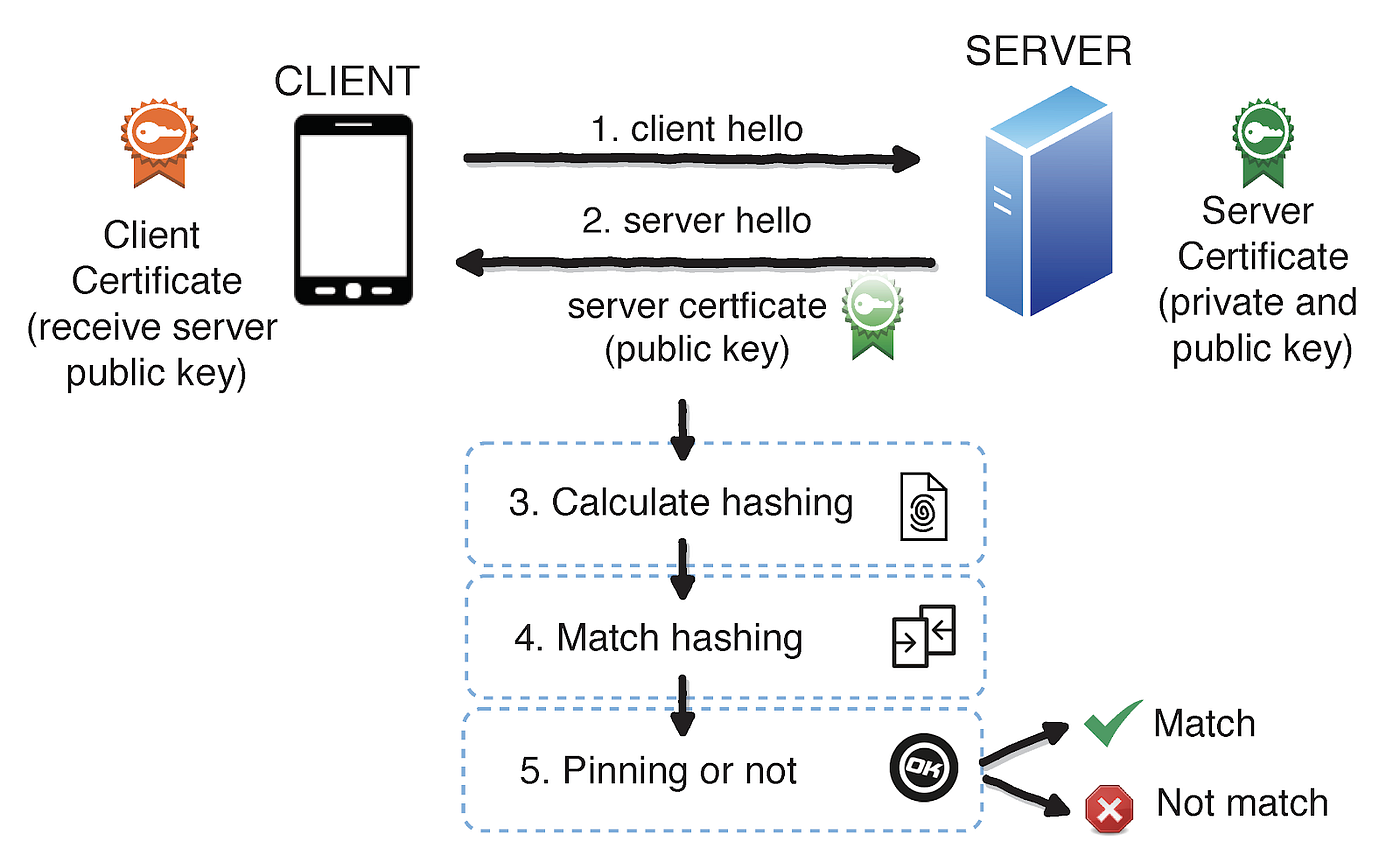
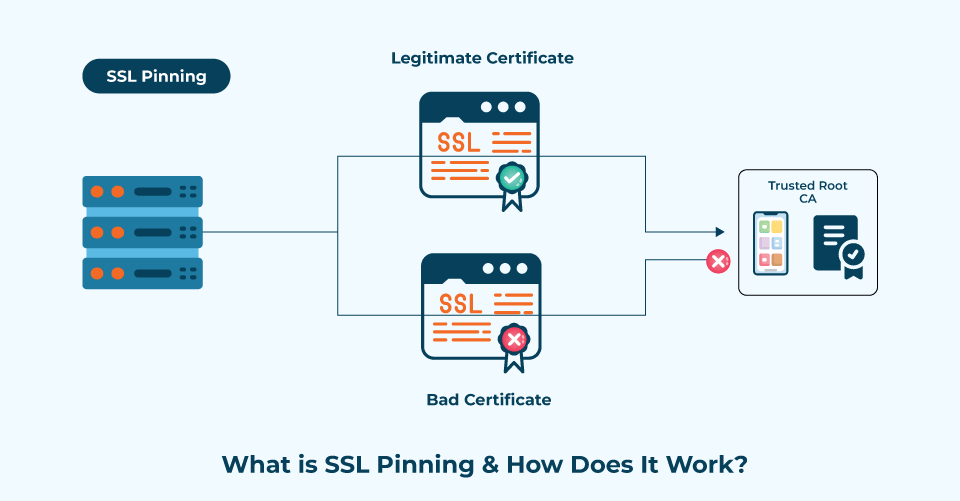
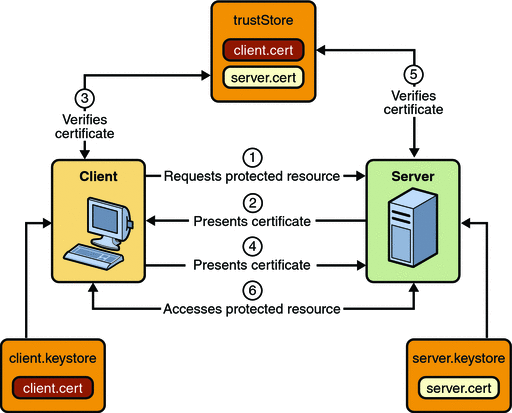
Without pinning
App → System Trust Store → CA → Server ✔️
With pinning
App → Compare pinned cert/public key → Server ✔️/❌
Why SSL Pinning is Useful in Android Apps
1️⃣ Prevents MITM Attacks
Even if:
- User installs malicious CA
- Attacker uses Wi-Fi sniffing
- Corporate proxy tries interception
👉 App will reject the connection
2️⃣ Protects Sensitive Data
Very important if your app handles:
- Login credentials
- OTPs
- Payment data
- Bank details
- Personal user data
Used heavily in:
- Banking apps 🏦
- UPI / Wallet apps
- Healthcare apps
- Enterprise apps
3️⃣ Blocks Debugging & Proxy Tools
Tools like:
- Charles Proxy
- Burp Suite
- MITM Proxy
❌ Won’t work unless attacker bypasses pinning (harder).
4️⃣ Ensures You’re Talking to the Real Server
Even if DNS is poisoned or redirected:
- App trusts only the pinned server
Types of SSL Pinning in Android
🔹 1. Certificate Pinning
- Pin the entire certificate
- ❌ Breaks when certificate expires/renews
🔹 2. Public Key Pinning (Recommended ✅)
- Pin only the public key
- ✔️ Works even if certificate renews
- ✔️ More flexible
How to Implement SSL Pinning in Android
✅ Using Network Security Config (Android 7+)
res/xml/network_security_config.xml
<network-security-config>
<domain-config cleartextTrafficPermitted="false">
<domain includeSubdomains="true">api.yourserver.com</domain>
<pin-set expiration="2027-12-31">
<pin digest="SHA-256">BASE64_PUBLIC_KEY_HASH</pin>
</pin-set>
</domain-config>
</network-security-config>
AndroidManifest.xml
<application
android:networkSecurityConfig="@xml/network_security_config">
</application>
✔️ Simple
✔️ No code changes
✔️ Best practice
✅ Using OkHttp (Programmatic)
val certificatePinner = CertificatePinner.Builder()
.add("api.yourserver.com",
"sha256/BASE64_PUBLIC_KEY_HASH")
.build()
val client = OkHttpClient.Builder()
.certificatePinner(certificatePinner)
.build()
Limitations / Risks ⚠️
- ❌ App breaks if pin is not updated before expiry
- ❌ Makes debugging harder for developers
- ❌ Can be bypassed on rooted devices (Frida/Xposed)
👉 Best practice:
- Pin multiple keys (current + backup)
- Use public key pinning
- Combine with:
- Root detection
- Obfuscation
- Runtime integrity checks
Interview One-Liner (Very Important 🔥)
SSL Pinning ensures that an Android app communicates only with a trusted server by validating the server’s certificate or public key, preventing man-in-the-middle attacks even if a malicious certificate is installed on the device.
Caching with Retrofit is one of those topics interviewers love because it mixes networking + performance + offline UX. Let’s do this clean, practical, and Android-real. 😄
What is Caching in Retrofit?
Caching means:
Reuse previously fetched API responses instead of hitting the network every time.
With Retrofit, caching is usually handled by OkHttp’s cache, not Retrofit itself.
Why Cache API Responses?
Benefits 🚀
- Faster API responses
- Works in offline / poor network
- Reduces server load
- Saves user data & battery
Common Use Cases
- Product lists
- Feeds
- Dashboard data
- Configuration APIs
- Read-only data
How Retrofit Caching Works (Internally)
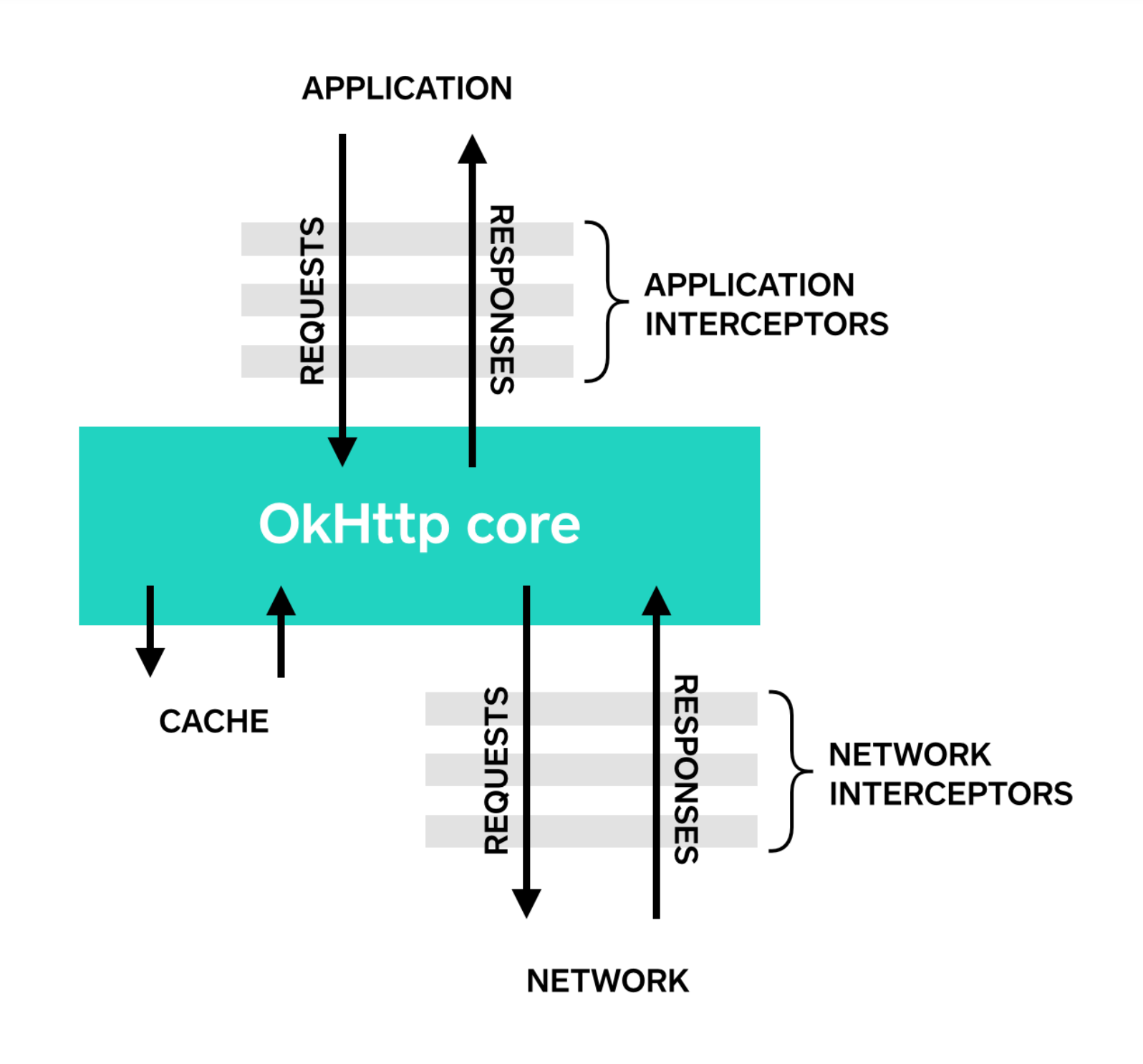
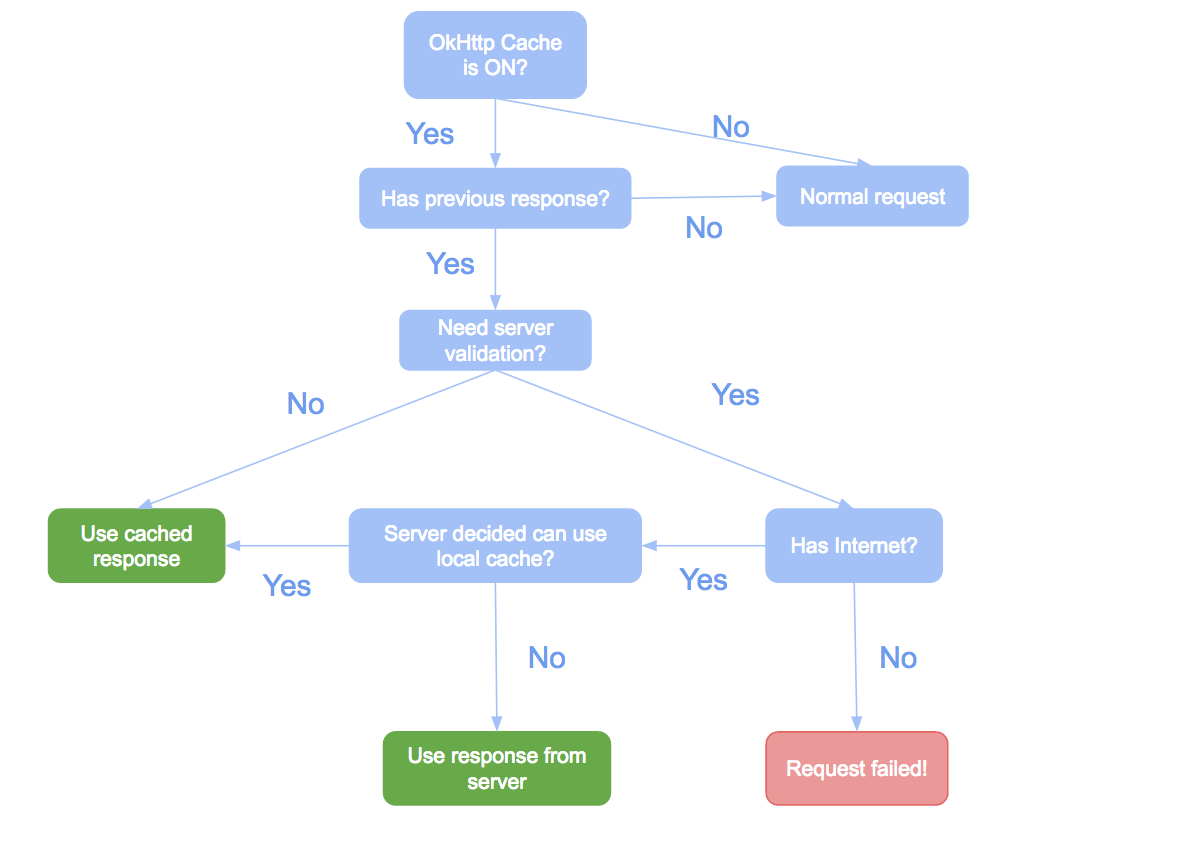
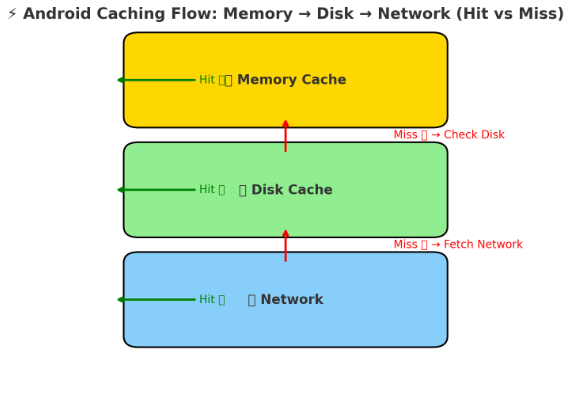
Flow:
Retrofit
↓
OkHttp
↓
Cache (Disk)
↓
Network (if needed)
OkHttp follows HTTP cache headers:
- Cache-Control
- Expires
- ETag
- Last-Modified
Step-by-Step: Enable Caching in Retrofit
1️⃣ Add Cache Dependency
Already included if you use OkHttp with Retrofit.
2️⃣ Create OkHttp Cache
val cacheSize = 10L * 1024 * 1024 // 10 MB
val cache = Cache(context.cacheDir, cacheSize)
3️⃣ Build OkHttpClient with Cache
val okHttpClient = OkHttpClient.Builder()
.cache(cache)
.build()
4️⃣ Attach to Retrofit
val retrofit = Retrofit.Builder()
.baseUrl("https://api.example.com/")
.client(okHttpClient)
.addConverterFactory(GsonConverterFactory.create())
.build()
⚠️ Important:
Caching will work ONLY if server sends cache headers
Server-Driven Caching (Best Practice ✅)
Example API Response Header
Cache-Control: public, max-age=60
Meaning:
- Cache response for 60 seconds
OkHttp automatically handles this.
Client-Side Forced Caching (When Server Doesn’t Support)
🔹 Cache Interceptor
class CacheInterceptor : Interceptor {
override fun intercept(chain: Interceptor.Chain): Response {
val response = chain.proceed(chain.request())
return response.newBuilder()
.header("Cache-Control", "public, max-age=60")
.build()
}
}
Add it:
val client = OkHttpClient.Builder()
.cache(cache)
.addNetworkInterceptor(CacheInterceptor())
.build()
Offline Caching (Very Important ⭐)
When Internet is NOT Available
class OfflineCacheInterceptor(
private val context: Context
) : Interceptor {
override fun intercept(chain: Interceptor.Chain): Response {
var request = chain.request()
if (!isNetworkAvailable(context)) {
request = request.newBuilder()
.cacheControl(
CacheControl.Builder()
.onlyIfCached()
.maxStale(7, TimeUnit.DAYS)
.build()
)
.build()
}
return chain.proceed(request)
}
}
Add interceptor:
OkHttpClient.Builder()
.cache(cache)
.addInterceptor(OfflineCacheInterceptor(context))
.build()
This allows:
- Use cached data for up to 7 days when offline
Retrofit @Headers Based Caching
@Headers("Cache-Control: public, max-age=120")
@GET("users")
suspend fun getUsers(): Response<List<User>>
✔️ Simple
❌ Not flexible for offline logic
Cache vs Room Database (Interview Gold 🏆)
OkHttp Cache | Room DB |
Short-term | Long-term |
Automatic | Manual |
Network responses | App data |
HTTP based | Business logic |
👉 Best practice:
Use both
- OkHttp cache → fast & short-lived
- Room → persistent offline support
How to Debug Cache?
Add logging:
HttpLoggingInterceptor().apply {
level = HttpLoggingInterceptor.Level.HEADERS
}
Look for:
cache-hit
cache-miss
Common Interview Questions
❓ Does Retrofit cache automatically?
👉 No, OkHttp does — and only if cache headers exist.
❓ Where is cache stored?
👉 context.cacheDir (internal storage)
❓ What happens if cache expires?
👉 Network call is made again.
❓ Can cache be cleared?
cache.evictAll()
One-Line Interview Answer 🔥
Retrofit uses OkHttp’s HTTP cache mechanism, which stores API responses on disk based on cache headers, improving performance and enabling limited offline support.
Interceptor in Retrofit
An Interceptor in Android is a powerful concept used mainly with OkHttp and Retrofit to control and manage network requests and responses in a clean, centralized way. Instead of writing the same networking logic again and again in different API calls, an interceptor lets you handle it at one common place.
When your app makes an API call, the interceptor sits between the app and the server. It can see the outgoing request before it is sent and the incoming response before it reaches your app. This makes interceptors very useful for handling common tasks.
One of the most common uses of an interceptor is adding headers. For example, many APIs require an Authorization token, API key, or content type in every request. With an interceptor, you add these headers once, and they are automatically attached to all API calls. This avoids repetitive code and reduces mistakes.
Another important use is logging. During development, you often want to see request URLs, headers, request bodies, response codes, and server responses. A logging interceptor helps developers debug issues quickly by printing all this information without changing API code.
Interceptors are also widely used for security purposes. Features like SSL pinning, request validation, and blocking unsafe requests can be handled inside interceptors. This improves app security and protects against attacks like man-in-the-middle.
Caching is another strong use case. Interceptors can control how responses are cached and when cached data should be used instead of making a network call. This improves app performance, reduces data usage, and provides a better user experience, especially in poor network conditions.
There are mainly two types of interceptors in OkHttp.
Application Interceptors, which run once per request and are best for headers, logging, and authentication.
Network Interceptors, which work closer to the network layer and are useful for handling cache and network-level changes.
Interceptors also help in building clean architecture. All networking rules stay in one place, making the code easier to maintain, test, and upgrade. For example, when switching from Volley to Retrofit, interceptors help you implement common logic without touching the whole app.
In simple words, an interceptor is like a checkpoint for network calls that improves security, reduces duplicate code, and keeps your Android application organized and scalable.
Type Converter
A Type Converter in Android (commonly used with Room Database) is used to convert complex data types into simple types that the database can store, and convert them back when reading.
Why needed
Room supports only basic types (Int, String, Boolean, etc.).
For objects like List, Date, Enum, TypeConverter is required.
Example
Convert Date ↔ Long:
class Converters {
@TypeConverter
fun fromDate(date: Date?): Long? {
return date?.time
}
@TypeConverter
fun toDate(timestamp: Long?): Date? {
return timestamp?.let { Date(it) }
}
}
How to use
@Database(entities = [User::class], version = 1)
@TypeConverters(Converters::class)
abstract class AppDatabase : RoomDatabase()
In simple words
TypeConverter acts like a translator between complex objects and database-supported data types.
Room DB Migration
Room DB Migration is used when you change the database schema (add/remove column or table) and want to preserve existing user data instead of losing it.
Why migration is needed
- App update changes table structure
- Prevents app crash
- Keeps old data safe
Simple example (add a new column)
val MIGRATION_1_2 = object : Migration(1, 2) {
override fun migrate(database: SupportSQLiteDatabase) {
database.execSQL(
"ALTER TABLE User ADD COLUMN age INTEGER NOT NULL DEFAULT 0"
)
}
}
Apply migration
Room.databaseBuilder(
context,
AppDatabase::class.java,
"app_db"
)
.addMigrations(MIGRATION_1_2)
.build()
Key points
- Version number must be increased
- Write SQL for schema changes
- Use fallbackToDestructiveMigration() only for testing
👉 In short: Migration updates DB structure without deleting user data.
SOLID Principles
SOLID Principles are five object-oriented design rules that help you write clean, flexible, and maintainable code.
1. S – Single Responsibility Principle
A class should have only one reason to change.
👉 One class = one job.
2. O – Open/Closed Principle
Classes should be open for extension but closed for modification.
👉 Add new behavior without changing existing code.
3. L – Liskov Substitution Principle
A child class should replace its parent class without breaking the app.
👉 Subclasses must behave like their base class.
4. I – Interface Segregation Principle
Do not force a class to implement methods it doesn’t use.
👉 Many small interfaces are better than one big interface.
5. D – Dependency Inversion Principle
Depend on abstractions, not concrete classes.
👉 Use interfaces instead of direct implementations.
In simple words
SOLID makes code easy to test, easy to change, and easy to scale, especially important in large Android projects and interviews.
Design Principles are general guidelines that help developers write clean, reusable, and maintainable code. They are broader than SOLID and used in daily development.
Key Design Principles (Easy Language)
- KISS (Keep It Simple, Stupid)
Keep code simple and easy to understand. Avoid over-engineering. - DRY (Don’t Repeat Yourself)
Avoid duplicate code. Write common logic once and reuse it. - YAGNI (You Aren’t Gonna Need It)
Don’t add features until they are actually required. - Separation of Concerns
Each part of the app should handle only one responsibility
(UI, business logic, data). - High Cohesion, Low Coupling
- High cohesion: related code stays together
- Low coupling: classes depend less on each other
- Encapsulation
Hide internal details and expose only what is necessary. - Composition over Inheritance
Prefer using objects inside classes instead of extending classes.
In short
Design principles help you build scalable, readable, and maintainable software, especially important for Android apps and system design interviews.
Design Patterns are reusable solutions to common software design problems. They are not code, but proven ways to structure code.
Types of Design Patterns
1. Creational Patterns
Used to create objects efficiently.
- Singleton – Only one instance (e.g., Database, Retrofit)
- Factory – Creates objects without exposing creation logic
- Builder – Builds complex objects step by step
2. Structural Patterns
Used to organize classes and objects.
- Adapter – Makes two incompatible interfaces work together
- Decorator – Adds features without changing the class
- Facade – Simplifies complex systems (e.g., Repository layer)
3. Behavioral Patterns
Used to manage communication between objects.
- Observer – Notifies changes (LiveData, Flow)
- Strategy – Switch behavior at runtime
- Command – Encapsulates actions as objects
Android Examples
- MVVM → Architectural pattern
- Repository → Facade
- RecyclerView Adapter → Adapter pattern
- LiveData / Flow → Observer
In simple words
Design patterns make code reusable, scalable, and easier to understand, especially in large Android applications and interviews.
📌 Push Notification Integration (Android – FCM)
🧩 Step 1: Create Firebase Project
- Go to Firebase Console
- Create a new project
- Enable Cloud Messaging (FCM)
🧩 Step 2: Add Android App to Firebase
- Register app using package name
- Download google-services.json
- Place it inside app/ directory
🧩 Step 3: Configure Gradle
Project level
classpath "com.google.gms:google-services"
App level
apply plugin: 'com.google.gms.google-services'
implementation "com.google.firebase:firebase-messaging"
🧩 Step 4: Generate FCM Token
- FCM auto-generates a device token
- Token uniquely identifies device/app instance
onNewToken(token)
send token to backend server
📌 Important: Store token on backend for targeting users
🧩 Step 5: Create FirebaseMessagingService
Used to receive notifications & data
class MyFirebaseMessagingService : FirebaseMessagingService
Callback methods:
- onMessageReceived()
- onNewToken()
🧩 Step 6: Handle Incoming Notification
Two types:
🔹 Notification Payload
- Handled automatically by system
- App in background → shown in tray
🔹 Data Payload
- Always handled in onMessageReceived
- Needed for custom UI / logic
🧩 Step 7: Create Notification Channel (Android 8+)
Mandatory for showing notifications
Create channel with:
channelId
importance
description
🧩 Step 8: Show Notification
- Build notification using NotificationCompat
- Attach:
- Title
- Message
- Icon
- PendingIntent (deep link / screen open)
🧩 Step 9: Handle Click Action
- Use PendingIntent
- Open specific screen
- Pass payload data
Notification click → Intent → Activity
🧩 Step 10: Send Notification
Options:
- Firebase Console (manual testing)
- Backend server (recommended)
- REST API using server key
🔄 Overall Flow (Easy to Remember)
Server
↓
FCM
↓
Device Token
↓
FirebaseMessagingService
↓
Notification Manager
↓
User
⚠️ Important Best Practices
- Handle token refresh
- Support notification + data payload
- Use deep links
- Handle foreground notifications manually
- Use analytics for delivery tracking
⭐ Interview One-Liners
- FCM token uniquely identifies app instance
- Data payload gives full control
- Notification channel mandatory from Android 8+
- WorkManager recommended for heavy background processing from push
🧪 Common Interview Questions
Q: App killed, notification arrives – will it show?
✅ Yes (notification payload)
Q: Want custom logic?
✅ Use data payload
Q: Token changes when?
✅ App reinstall, clear data, security refresh
Classic master–detail interview scenario 👍
Here’s the recommended, modern way to handle Fragment → Fragment communication for:
👉 Left Fragment = News List
👉 Right Fragment = News Details
✅ Best Approach: Shared ViewModel (Activity-scoped)
This is the Google-recommended and cleanest solution.
🧩 Architecture Overview
Activity
├── NewsListFragment (Left)
└── NewsDetailFragment (Right)
↑
Shared ViewModel
🧠 Why Shared ViewModel?
- No tight coupling
- Lifecycle-aware
- Works with configuration changes
- Clean MVVM pattern
🪜 Step-by-Step Flow
🔹 Step 1: Create Shared ViewModel
class NewsSharedViewModel
selectedNews = LiveData<News>
🔹 Step 2: Initialize ViewModel (Activity scope)
Both fragments use the same ViewModel
viewModel = activityViewModels<NewsSharedViewModel>()
🔹 Step 3: News List Fragment (Sender – Left)
onNewsItemClick(news)
viewModel.selectedNews.postValue(news)
📌 User clicks a news item → data stored in ViewModel
🔹 Step 4: News Detail Fragment (Receiver – Right)
observe selectedNews
update UI with news details
📌 Detail fragment automatically updates
🔄 Data Flow (Easy to Remember)
User clicks news
↓
List Fragment
↓
Shared ViewModel
↓
Detail Fragment
🧪 Interview Pseudocode Summary
LeftFragment:
onItemClick(news)
viewModel.setNews(news)
RightFragment:
observe(viewModel.news)
showDetails(news)
⚠️ Alternative Approaches (Know for Interview)
Method | Status | Why Not Recommended |
Fragment constructor | ❌ Deprecated | Breaks lifecycle |
Direct fragment reference | ❌ Bad | Tight coupling |
Interface callback | ⚠️ Old | Activity dependency |
EventBus | ❌ Avoid | Hard to debug |
⭐ One-Line Interview Answer
Fragment-to-Fragment communication should be done using a shared ViewModel scoped to the Activity, ensuring loose coupling and lifecycle safety.
App Performance optimization
If an Android application reaches 1 crore (10 million) downloads, performance optimization becomes critical because the app must support millions of users, different devices, and high server load. Below are key ways to enhance Android app performance at large scale.
1️⃣ App Startup Optimization (Cold Start / Warm Start)
A large app must start within 2–3 seconds.
Techniques
- Use Android Jetpack App Startup to control initialization.
- Avoid heavy work in Application.onCreate().
- Lazy initialize SDKs.
- Use Baseline Profiles for faster startup.
Example
class MyApp : Application() {
override fun onCreate() {
super.onCreate()
// Avoid heavy initialization here
}
}
2️⃣ Efficient UI Rendering
Poor UI rendering causes jank and frame drops.
Best practices
- Use Jetpack Compose or optimized Android RecyclerView.
- Avoid unnecessary recompositions.
- Use remember and derivedStateOf.
Example
@Composable
fun UserItem(user: User) {
Text(text = user.name)
}
3️⃣ Memory Optimization
Apps with millions of users often crash due to OutOfMemoryError.
Solutions
- Use LeakCanary to detect memory leaks.
- Avoid holding Context in static objects.
- Use ViewModel for lifecycle-safe data.
Example:
class UserViewModel : ViewModel() {
val users = MutableStateFlow<List<User>>(emptyList())
}
4️⃣ Network Optimization
Millions of users generate huge network traffic.
Techniques
- Use Retrofit + OkHttp
- Enable HTTP caching
- Use pagination
Example:
@GET("users")
suspend fun getUsers(
@Query("page") page: Int
): List<User>
5️⃣ Image Loading Optimization
Images are the largest performance bottleneck.
Use optimized libraries like:
- Glide
- Coil
- Picasso
Example:
Glide.with(context)
.load(imageUrl)
.into(imageView)
Benefits:
- Memory caching
- Disk caching
- Image compression
6️⃣ Database Optimization
Large apps must handle millions of records locally.
Use:
- Room
- Indexed queries
- Pagination with Paging3
Example:
@Query("SELECT * FROM users LIMIT :limit OFFSET :offset")
fun getUsers(limit: Int, offset: Int): List<User>
7️⃣ Background Work Optimization
Avoid battery drain and ANRs.
Use:
- WorkManager
- Kotlin Coroutines
Example:
CoroutineScope(Dispatchers.IO).launch {
repository.syncData()
}
8️⃣ App Size Optimization
Large apps lose users due to large APK size.
Techniques:
- Enable R8 / Proguard
- Use Android App Bundle
- Remove unused resources
9️⃣ Monitoring & Crash Tracking
For apps with 1Cr+ downloads, monitoring is mandatory.
Use:
- Firebase Crashlytics
- Firebase Performance Monitoring
- New Relic
This helps detect:
- crashes
- ANRs
- slow network calls
🔟 Scalable Backend Support
High download apps must have scalable backend.
Technologies used:
- Amazon Web Services
- Google Cloud
- Cloudflare CDN
Benefits:
- load balancing
- caching
- faster API responses
🔥 Real Apps with 1Cr+ Downloads
Apps like:
- Spotify
- Netflix
- Instagram
use microservices backend + aggressive caching + optimized UI rendering.
✅ Simple Rule for 1Cr+ Apps
Optimize Startup + Memory + Network + UI + Backend
1️⃣ How to Check Memory Leaks in Android
A memory leak happens when objects that are no longer needed are still referenced and cannot be garbage collected.
Method 1: Use LeakCanary (Best for Development)
LeakCanary is the most popular tool.
Add Dependency
debugImplementation "com.squareup.leakcanary:leakcanary-android:2.12"
How it works
- Automatically detects destroyed Activities, Fragments, Views
- If they are still in memory → reports a memory leak
Example Leak Report
Leaking: MainActivity
↓ MainActivity.mContext
↓ SomeSingleton.context
This means Activity is held by Singleton → memory leak.
Common Causes
- Static reference to Activity
- Singleton holding Context
- Unregistered BroadcastReceiver
- Handler referencing Activity
- Long running coroutine in Activity scope
Example BAD code
object Manager {
var context: Context? = null
}
Fix
object Manager {
var context: Context? = null
private set
}
Use Application context instead
Manager.context = applicationContext
Method 2: Android Studio Memory Profiler
Android Studio provides a Memory Profiler.
Steps
- Run app in debug mode
- Open Profiler
- Select Memory
- Perform user actions
- Click Dump Heap
You can then check:
- object count
- retained objects
- GC events
Look for:
- Activity instances not destroyed
- growing memory usage
Method 3: Check Heap Dump
Take heap dump:
Android Studio
→ Profiler
→ Memory
→ Dump Java Heap
Then inspect:
- retained objects
- reference tree
2️⃣ How to Detect ANR (Application Not Responding)
ANR happens when Main Thread is blocked for too long.
ANR Timeout Rules
Component | Timeout |
Activity | 5 seconds |
BroadcastReceiver | 10 seconds |
Service | 20 seconds |
Method 1: Check Logcat
Search for:
ANR in com.example.app
Example log:
Input dispatching timed out
Waiting because no window has focus
This means UI thread blocked.
Method 2: Check /data/anr traces
Android stores ANR traces.
File:
/data/anr/traces.txt
Contains:
"main" prio=5 tid=1
Look for:
- thread blocked
- long operations
Method 3: Android Studio CPU Profiler
Steps:
- Open Profiler
- Select CPU
- Record
- Perform actions
Look for:
- long tasks on Main Thread
- blocking IO
- heavy computation
Method 4: Use StrictMode
Enable StrictMode in Application:
StrictMode.setThreadPolicy(
StrictMode.ThreadPolicy.Builder()
.detectAll()
.penaltyLog()
.build()
)
This detects:
- Disk read on main thread
- Network on main thread
- resource leaks
3️⃣ Common Causes of ANR
Cause | Example |
Network call on main thread | API call in Activity |
Heavy loops | Processing large data |
Large bitmap loading | UI thread image decoding |
Database queries | Room query without coroutine |
Deadlock | synchronized blocks |
Bad example
fun loadData() {
Thread.sleep(6000) // blocks UI
}
Fix
lifecycleScope.launch(Dispatchers.IO) {
loadData()
}
4️⃣ Production Monitoring Tools
Developers also use:
- Firebase Crashlytics
- New Relic
- Datadog
These tools detect:
- ANRs
- crashes
- memory issues
in real users' devices.
5️⃣ Interview Tip (Short Answer)
If asked in interview:
How do you detect memory leaks and ANRs?
Answer:
Memory leaks can be detected using LeakCanary, Android Studio Memory Profiler, and Heap Dumps.
ANRs can be detected by checking Logcat, ANR traces (/data/anr), CPU profiler, and monitoring tools like Firebase Crashlytics.
Android Performance Cheat Sheet
1. App Startup Optimization
- Avoid heavy work in Application.onCreate()
- Use lazy initialization
- Initialize SDKs only when needed
- Move heavy tasks to background threads
- Use Baseline Profiles for faster startup
- Avoid blocking the main thread
Example
lifecycleScope.launch(Dispatchers.IO) {
loadData()
}
2. Main Thread Optimization
The UI thread must stay free.
Avoid on main thread:
- Network calls
- Database queries
- File IO
- Large JSON parsing
Use:
- Coroutines
- WorkManager
- Background threads
Example
withContext(Dispatchers.IO) {
repository.fetchData()
}
3. Layout Performance
Reduce layout complexity.
Best practices:
- Prefer ConstraintLayout instead of deep nested layouts
- Avoid nested LinearLayout
- Use <merge> when possible
- Avoid unnecessary wrap_content
- Reuse views
Bad
LinearLayout
└ LinearLayout
└ LinearLayout
Good
ConstraintLayout
4. RecyclerView Optimization
Key optimizations:
- Use ViewHolder pattern
- Enable setHasFixedSize(true)
- Use DiffUtil
- Avoid calling notifyDataSetChanged()
- Use ListAdapter
Example
recyclerView.setHasFixedSize(true)
5. Memory Optimization
Avoid memory leaks.
Common causes:
- Static reference to Activity
- Singleton holding Context
- Unregistered BroadcastReceiver
- Long-lived coroutines
Use:
- WeakReference
- Application context
- Lifecycle aware components
Detect leaks with
LeakCanary
6. Image Optimization
Best practices:
- Use WebP / AVIF
- Load scaled images
- Avoid large bitmaps
- Use image loading libraries
Example libraries
- Glide
- Coil
- Picasso
Example
Glide.with(context)
.load(url)
.into(imageView)
7. Battery Optimization
Avoid:
- Frequent background tasks
- Wake locks
- Constant location updates
Use:
- WorkManager
- Job scheduling
- Batching tasks
8. Network Optimization
Best practices:
- Use HTTP caching
- Compress responses
- Use pagination
- Avoid repeated API calls
Libraries
- Retrofit
- OkHttp
9. ANR Prevention
ANR happens when main thread is blocked.
Timeouts:
- Activity: 5 seconds
- BroadcastReceiver: 10 seconds
- Service: 20 seconds
Avoid:
- Long loops
- Database queries on main thread
- Large file operations
Monitor with
- Android Studio Profiler
- Firebase Crashlytics
10. Profiling Tools
Use these tools for performance analysis:
Tools inside Android Studio:
- CPU Profiler
- Memory Profiler
- Network Profiler
- Layout Inspector
- System Trace
11. APK Size Optimization
Reduce APK size:
- Use R8 / ProGuard
- Remove unused resources
- Use App Bundles
- Enable resource shrinking
Example
minifyEnabled true
shrinkResources true
12. Rendering Performance
Goal: 60 FPS UI
Avoid:
- Overdraw
- Complex animations
- Large layouts
Tools:
- GPU Rendering Profile
- Layout Inspector
- Overdraw Debug